You don’t need to go to art school to make professional-looking visuals. Whether you’re building a brand, creating social media posts, or whipping up a presentation, there are now dozens of intuitive design tools made specifically for non-designers. With smart templates, drag-and-drop simplicity, and AI features, you can create polished, on-brand graphics in minutes—even if your only art experience is doodling in the margins.
Below are a few online design tools (plus an infographic-focused FAQ) that simplify the process without sacrificing quality. Each offers a unique way to help non-creatives make stunning visual content without the stress.
1. Adobe Express: Templates That Actually Think With You
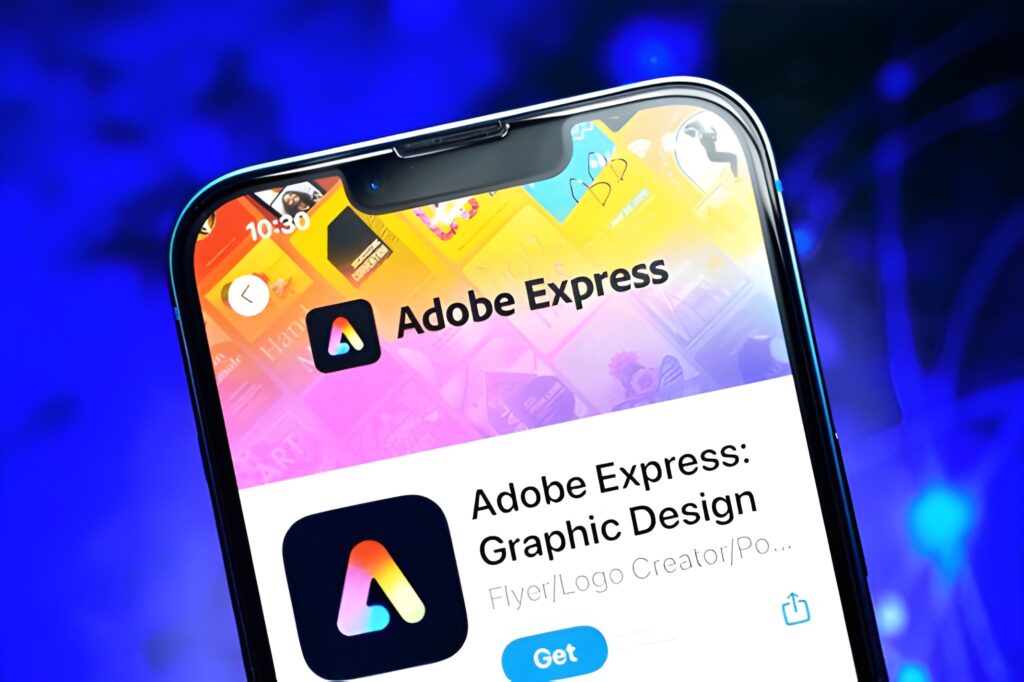
Adobe Express is built with busy entrepreneurs, marketers, and creators in mind. It offers thousands of templates for everything from Instagram posts to flyers, all editable in your browser with no design software required.
Smart Tip: Use Adobe Express’s “Brand Kit” feature to upload your logo, colors, and fonts. This ensures every design you create is consistent—whether you’re making business cards or promo banners. Their quick actions (like background removal or image resizing) save tons of time for non-techies.
2. Visme: Make Visual Data That Doesn’t Look Like Homework
If your design needs involve data—charts, graphs, or process flows—Visme shines. It turns numbers and concepts into visually digestible content with minimal effort.
Creative Move: Use Visme to design “slide decks that sell.” Start with their pitch deck templates, then drag in charts or timelines to support your narrative. It’s perfect for startup founders, educators, or marketers who want to convey value without putting audiences to sleep.
3. Snappa: Speed Design for Social Media Warriors
Snappa is ideal for marketers who need to crank out social graphics quickly. With a library of royalty-free photos, pre-sized templates for every social platform, and drag-and-drop functionality, it helps users build campaigns fast.
Efficiency Hack: Use Snappa’s “saved templates” function to batch-create graphics for weekly series—like Tip Tuesdays or Product Spotlights. This keeps your feed cohesive and cuts creation time in half.
4. Stencil: Quote Graphics and Promo Cards in Seconds
Stencil is perfect for solo professionals or creators who want to turn short messages into visually compelling posts. It’s lightweight, browser-based, and comes packed with high-res photos, icons, and templates.
Unique Tip: Try creating branded quote cards to share testimonials or taglines. Combine your voice with bold fonts and logos to create scroll-stopping visuals for LinkedIn, Twitter, or your website banner.
5. RelayThat: Brand Consistency at Scale
If you’re managing multiple brands or running frequent promotions, RelayThat offers something rare: automated design consistency. Upload your brand assets once, and it generates dozens of layout variations using your content.
Use Case: Small business owners juggling different audiences can build multi-format ad sets (Facebook, Instagram, display ads) with unified branding in minutes. The AI logic helps keep your visuals cohesive without micromanaging layout settings.
6. Pixlr X: Browser-Based Editing Without the Learning Curve
Need Photoshop-style features without the complexity or cost? Pixlr X is a free, browser-based editor with tools like layers, filters, and cut-outs—ideal for people who want a little more control over their designs.
Bonus Tip: Use the “Add Elements” tool to insert stickers, frames, or decorative graphics onto photos. This is especially useful for ecommerce sellers who want product photos to pop in marketplaces and catalogs.
⚡ FAQ: Infographic Design Tips for Non-Designers
Infographics are one of the best ways to present complex information in a visually engaging format. But for non-designers, they can seem intimidating. The good news? Modern tools make them easier than ever. Here are some of the most common questions non-designers ask about infographic creation:
Q1: What should I include in an infographic?
Start with a clear goal—what do you want the viewer to understand or do? Then build around 3–5 key points. Use icons, charts, or visual metaphors to replace big chunks of text. Less is more—avoid clutter and focus on clarity.
Q2: What’s a good tool to create infographics if I have zero design experience?
Try Adobe Express—it has pre-built templates that guide you through the process of laying out text, icons, and images. Their drag-and-drop interface allows you to easily generate infographics without needing to start from scratch or understand complex design tools.
Q3: How can I make sure my infographic looks professional?
Use a consistent color scheme (ideally 2–3 colors max), readable fonts, and balanced spacing. Don’t overload it with data—if something feels too dense, break it into a second visual. Tools like Venngage and Piktochart also offer design tutorials to help guide your layout choices.
Q4: Should I use icons or real images in an infographic?
Icons work best for simplifying abstract ideas or representing stats. Use real photos only if they add clarity (e.g., showing a person, product, or process). Sites like Flaticon or The Noun Project offer thousands of icons that integrate easily into popular design tools.
Q5: Can I use infographics in places other than blogs?
Absolutely. Infographics perform well on LinkedIn, Pinterest, and email newsletters. You can also turn them into presentation slides or include them in proposals and pitch decks. If you’re selling a service, infographics can explain your process visually and build trust.
You don’t need to be a designer to create designs that work. With the right tools—and a few smart strategies—you can communicate clearly, confidently, and creatively. These platforms do the heavy lifting so you can focus on what matters most: your message.
Ready to create without second-guessing? Your inner designer is just one click away.
Keep checking in for all the latest updates you don’t want to miss. Discover Heading!